



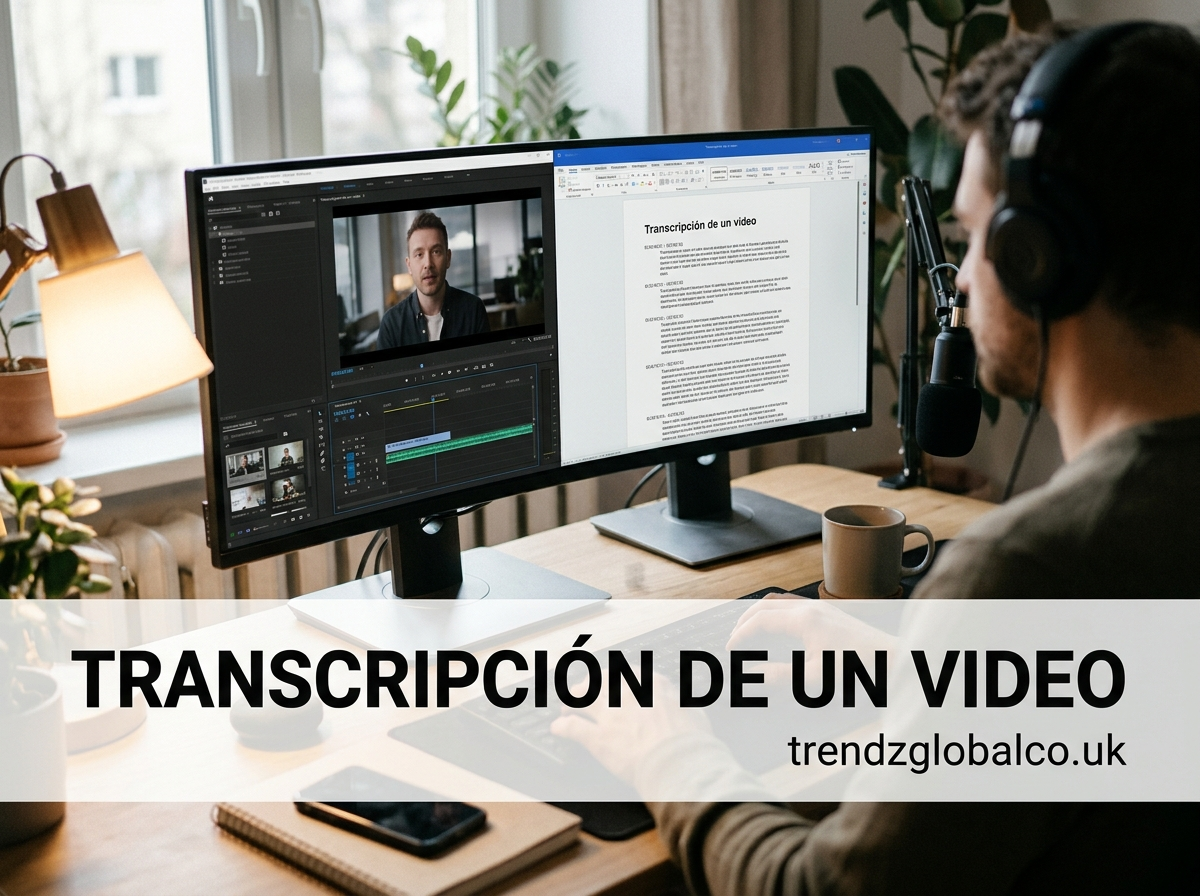
Video transcription is the process of converting the spoken audio in a video into written text. You can do it manually, with AI transcription tools, with YouTube’s built-in auto-transcript, or by hiring a professional service. AI tools are the fastest option, while human review gives the highest accuracy.
Whether you are a student turning lectures into notes, a marketer repurposing webinars into blog posts, or a creator who wants better accessibility and SEO, this guide shows you exactly how to transcribe a video, which tools to use, and how to get accurate results.
What Is Video Transcription?
Video transcription is the conversion of a video’s spoken words into a written document. The result is a text file you can read, search, edit, quote, and publish. A good transcript can also include speaker names and timestamps.
People often confuse transcripts with subtitles and closed captions. They are related, but they are not the same thing.
| Feature | Transcript | Subtitles | Closed captions |
|---|---|---|---|
| Format | Standalone text document | Text synced on screen | Text synced on screen |
| Timed to video | Optional | Yes | Yes |
| Includes sound cues (e.g. [music], [applause]) | Sometimes | No | Yes |
| Main purpose | Reading, searching, repurposing | Translation or clarity | Accessibility for deaf and hard-of-hearing viewers |
Why Transcribe a Video?
Transcription saves time and makes your content work harder. The most common reasons are:
- SEO: Search engines cannot watch a video, but they can read a transcript. Publishing the text alongside your video gives Google far more content to understand and rank.
- Accessibility: Transcripts help people who are deaf or hard of hearing, as well as viewers who watch without sound. Providing them also supports accessibility standards such as WCAG.
- Content repurposing: One video can become a blog post, social media quotes, a newsletter, and an email series.
- Research and study: Students, journalists, and researchers can search a transcript instead of rewatching hours of footage.
- Business records: Meetings, interviews, and training sessions become searchable and easy to share.
How to Transcribe a Video Step by Step
There are four main ways to transcribe a video. Choose based on your budget, deadline, and how accurate the transcript needs to be.
Method 1: Use an AI Transcription Tool (Fastest)
AI transcription tools convert speech to text automatically, usually in a few minutes. This is the best option for most people.
- Choose a transcription tool (see the comparison below).
- Upload your video file or paste the video link.
- Select the spoken language.
- Start the transcription and wait for it to process.
- Review the text and fix any errors, names, or technical terms.
- Export the transcript as TXT, DOCX, PDF, or SRT.
Method 2: Use YouTube’s Automatic Transcript (Free)
If your video is on YouTube, you can often get a transcript at no cost.
- Open the video on YouTube.
- Click the description box below the video to expand it.
- Select Show transcript.
- Copy the text, or toggle the timestamps on or off first.
- Paste it into a document and clean it up.
If you own the video, you can also edit and download captions from YouTube Studio. Automatic transcripts may contain mistakes, especially with accents, background noise, or specialized vocabulary, so always proofread.
Method 3: Transcribe Manually (Highest Control)
Manual transcription means listening to the video and typing what you hear. It is slow, but it gives you full control and is useful for short clips or sensitive content.
- Open your video and a blank document side by side.
- Play the video in short segments of 10 to 20 seconds.
- Type what you hear, then pause and rewind as needed.
- Add timestamps and speaker labels if required.
- Proofread the full transcript while watching the video once more.
Method 4: Hire a Professional Transcription Service
Professional services use trained human transcribers, sometimes combined with AI. This is the best choice for legal, medical, academic, or publication-ready work where accuracy matters most.
- Compare services based on accuracy guarantees, turnaround time, and price.
- Upload your file and specify the language, speaker labels, and timestamp needs.
- Receive the transcript and request revisions if needed.
Best Tools to Transcribe Videos (Free and Paid)
The right tool depends on your language, budget, and accuracy needs. Always check each provider’s current pricing and language support, since both change often.
| Tool | Cost | Best for | Notes |
|---|---|---|---|
| YouTube auto-transcript | Free | Videos already on YouTube | Quick, but accuracy varies |
| Whisper (OpenAI, open source) | Free to run | Tech-savvy users, many languages | Requires some technical setup |
| Google Docs Voice Typing | Free | Short audio, live dictation | Works best with clean, real-time audio |
| Otter.ai | Free tier and paid plans | Meetings and interviews | Speaker identification, live notes |
| Descript | Free tier and paid plans | Creators who edit video | Edit video by editing the text |
| Rev | Paid | Human-verified transcripts | Offers both AI and human options |
| Happy Scribe | Paid | Multilingual projects | Transcription plus translation and subtitles |
Pros and cons at a glance
- YouTube auto-transcript: Free and instant, but limited editing and inconsistent accuracy.
- Whisper: Powerful and free, but not beginner-friendly without a wrapper app.
- Otter.ai: Great for meetings, but advanced features need a paid plan.
- Descript: Excellent for editing, but may be more than you need for simple transcripts.
- Rev: Reliable quality, but costs more than purely automatic tools.
- Happy Scribe: Strong language coverage, but pricing can add up for long videos.
How to Transcribe a YouTube Video
The quickest way to transcribe a YouTube video is to open the video, expand the description, and click Show transcript. If the video has no transcript, paste its link into an AI transcription tool, or download the audio and upload it to a tool of your choice.
For your own videos, YouTube Studio lets you review, edit, and download captions directly. For videos you do not own, only use transcripts in ways that respect the creator’s copyright and YouTube’s terms.
How to Transcribe a Video on Your Phone (Android and iPhone)
You can transcribe a video from your phone using a transcription app, a cloud tool in your mobile browser, or built-in dictation.
- Install a transcription app such as Otter.ai or open a web-based tool in your browser.
- Upload the video from your gallery or paste a link.
- Choose the language and start transcription.
- Review the text and export or share it.
For recording something live, voice typing on Android or dictation on iPhone can transcribe speech in real time, though the results are best in quiet environments.
Tips for a More Accurate Transcription
Accuracy depends heavily on the quality of your audio. These habits make the biggest difference:
- Start with clean audio. Use a good microphone and record in a quiet room.
- Reduce background noise. Remove music or noise before uploading when possible.
- Choose the correct language and accent setting. Many tools offer regional options.
- Add custom vocabulary. Teach the tool brand names, jargon, and uncommon terms.
- Avoid overlapping speakers. Crosstalk is one of the hardest things for AI to handle.
- Always proofread. Even the best AI transcript benefits from a quick human review.
Manual vs. Automatic Transcription: Which Should You Choose?
Choose automatic transcription when you need speed and low cost, and manual or human-reviewed transcription when accuracy is critical.
| Factor | Automatic (AI) | Manual / human |
|---|---|---|
| Speed | Minutes | Hours or days |
| Cost | Low or free | Higher |
| Accuracy | Good with clear audio | Highest |
| Best for | Drafts, notes, content repurposing | Legal, medical, publishing |
A practical middle path is to run an AI transcript first, then proofread it yourself. This gives you most of the speed and much of the accuracy.
Common Mistakes When Transcribing a Video
- Trusting the automatic transcript without proofreading it
- Uploading low-quality or noisy audio
- Selecting the wrong language or dialect
- Ignoring speaker labels in interviews and meetings
- Forgetting to add timestamps for long videos
- Publishing a raw transcript with no formatting, headings, or paragraph breaks
- Using someone else’s video transcript without permission
Frequently Asked Questions
How much does it cost to transcribe a video?
Costs range from free to several dollars per minute. YouTube’s auto-transcript and open-source tools like Whisper are free, many AI tools offer free tiers or low monthly plans, and human transcription services usually charge per audio minute. Prices vary by provider, so check current rates before you commit.
How long does video transcription take?
AI transcription usually takes a few minutes, often much shorter than the video itself. Manual transcription is far slower, and many people need several hours to transcribe one hour of audio. Professional services typically deliver within hours or a few days depending on the plan.
Can I transcribe a video for free?
Yes. You can use YouTube’s built-in transcript, Google Docs voice typing, open-source tools like Whisper, or the free tiers of apps such as Otter.ai. Free options usually come with limits on length, features, or accuracy, so they suit shorter or less critical videos.
How accurate is AI video transcription?
AI transcription can be very accurate with clear audio and a single speaker, but accuracy drops with background noise, heavy accents, overlapping voices, and technical terms. Because results vary by tool and recording quality, review the transcript before publishing or sharing it.
Can I transcribe a video in another language?
Yes. Many tools support dozens of languages and can also translate the transcript. Select the video’s spoken language before you start, then use a translation feature if you want the text in a different language.
What is the difference between transcribing and subtitling?
Transcribing converts speech into a text document, while subtitling displays timed text on the screen during playback. A transcript can be turned into subtitles by adding timestamps, and many tools can export both formats from the same file.
Conclusion
Video transcription is one of the simplest ways to make your content more accessible, searchable, and reusable. For most people, the best approach is to run an AI transcription tool, then proofread the result. If accuracy is critical, add human review or use a professional service.
