



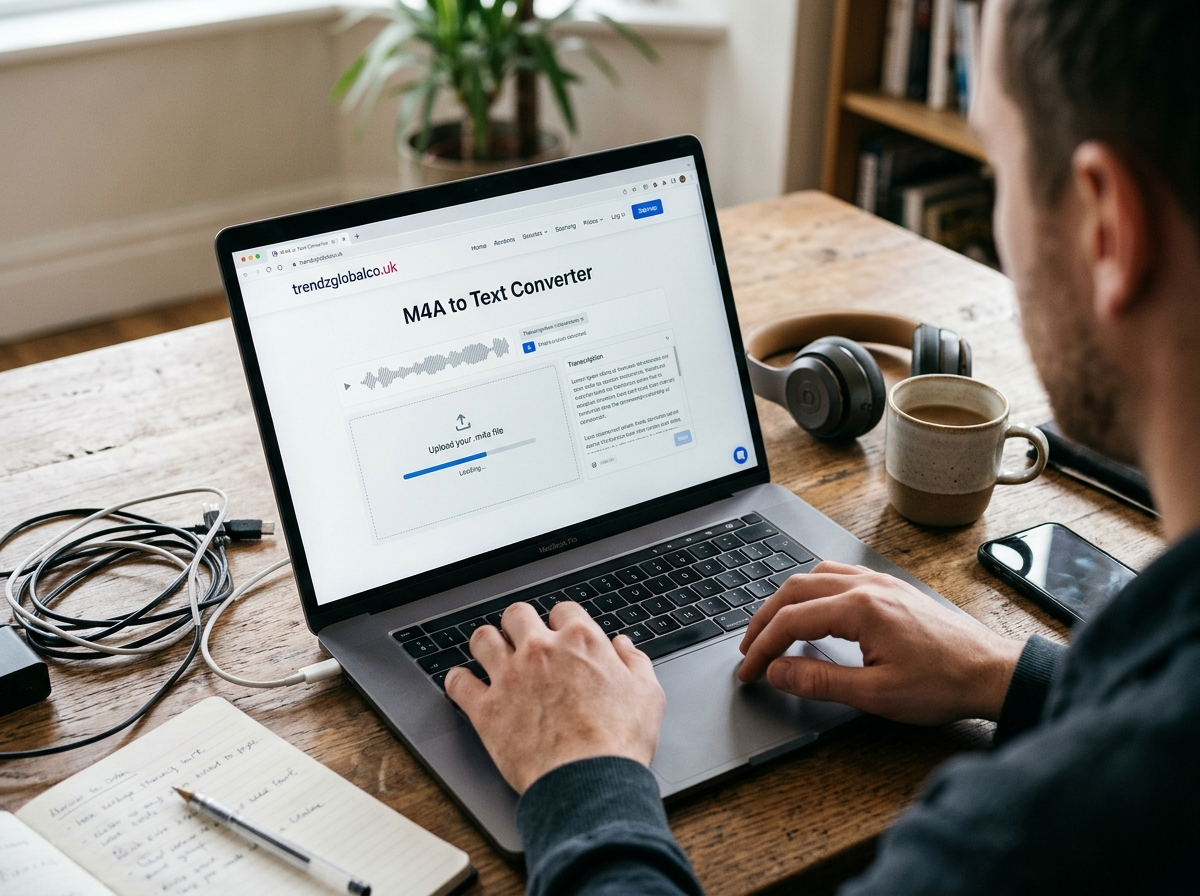
An M4A to text converter helps you turn an audio recording into written text without typing every word yourself. You can use it to transcribe lectures, meetings, interviews, voice notes, and other recordings. Instead of listening to the same audio several times to write down important details, you can use a transcription tool to create a text version of the recording.
M4A is a common audio file format used by smartphones and recording applications. Many transcription tools can process M4A files and generate text that you can copy, edit, or save for later use. The results depend on the tool, the language of the recording, and the quality of the audio.
Whether you are a student preparing study notes, a professional documenting a meeting, or a content creator working with recorded interviews, converting M4A audio to text can save time and make information easier to find.
What Is an M4A to Text Converter?
An M4A to text converter is a tool that changes spoken words in an M4A audio file into written text. It usually uses speech recognition technology to identify words and create a transcript. Some tools also use artificial intelligence to improve punctuation, organize sentences, and distinguish between speakers.
An M4A file stores audio, not a written transcript. For example, if you record a classroom lecture and save it as an M4A file, you can upload the recording to a compatible transcription tool. The tool processes the speech and produces text that you can review and edit.
These converters are useful for people who need written records of spoken information. Students can turn lectures into revision notes, journalists can prepare interview transcripts, and office workers can create written records of discussions. The resulting text is also easier to search than an audio recording because you can look for specific words or phrases.
How to Convert M4A to Text Online
Converting an M4A file to text is usually a straightforward process. Most browser-based transcription services follow a similar workflow, although their options and file limits may differ.
Step 1: Choose an M4A Transcription Tool
Find an online transcription service that supports M4A files. Check whether it offers automatic speech recognition, supports your recording’s language, and provides a suitable download format. If the recording contains private information, review the service’s privacy policy before uploading it.
Step 2: Upload Your M4A Audio File
Open the chosen tool and select its upload option. Find the M4A file on your computer or mobile device and upload it. Some services also accept files through drag-and-drop or other import methods.
If the upload fails, check the file size, internet connection, and supported formats. You may need to use another service if the tool does not accept your recording.
Step 3: Select the Language
Choose the language spoken in the audio if the tool asks you to do so. Selecting the correct language can help the system recognize words more accurately. For recordings with multiple languages, check whether the service supports multilingual transcription or language switching.
Step 4: Start the Transcription
Click the option to transcribe or convert the audio. The tool will analyze the recording and generate a text transcript. Processing time depends on the recording’s length, audio quality, and the service’s capabilities.
Step 5: Review and Download the Text
Read the generated transcript and correct any mistakes. Pay attention to names, numbers, punctuation, technical terms, and words that sound similar. Copy the text or download it in a format supported by the service, such as TXT, DOCX, or another available option.
Best Ways to Convert M4A Audio to Text
There are several ways to transcribe an M4A recording. The right option depends on how often you need transcription, how much audio you have, and whether you prefer an online service or software installed on your device.
Online AI transcription tools are convenient for occasional tasks. You upload a recording through a browser, start the transcription, and receive a written version. These services can be useful when you want to avoid installing additional software. Free plans may have restrictions on recording length, file size, or the number of files you can process.
Desktop transcription software can be a better choice for people who regularly work with audio recordings. Depending on the application, it may provide editing features, local processing, speaker labels, or support for larger files. Check whether the software processes audio locally or sends it to an online service.
Mobile transcription apps are useful when you record lectures, interviews, or voice notes on a phone. Some applications can import existing audio files, while others focus on recording and transcribing new speech. Before choosing an app, confirm that it supports importing M4A files rather than only transcribing recordings made inside the application.
Built-in speech recognition features may also help with certain workflows. However, not every voice typing feature can open an existing M4A file directly. You should check whether the feature supports audio-file transcription or only converts live speech into text.
How Does an M4A to Text Converter Work?
An M4A to text converter generally uses automatic speech recognition, often called ASR, to identify spoken words in an audio recording. Some services combine speech recognition with AI models that help process language and format the resulting transcript.
First, the service reads the audio data and analyzes the speech signal. It then identifies likely words and converts the recognized speech into text. Depending on the software, it may add punctuation, divide the transcript into sentences, create timestamps, or identify different speakers.
The accuracy of this process depends on several factors. Clear recordings with little background noise are usually easier to transcribe than recordings with overlapping conversations, distant speakers, or poor microphone quality. Uncommon names, regional accents, specialist vocabulary, and fast speech can also cause errors.
Some tools provide additional features such as speaker identification, searchable transcripts, and automatic summaries. These features are not included in every converter, and a summary is different from a full transcript. If you need a complete record of what was said, choose a transcription option rather than relying only on an AI-generated summary.
Can You Convert M4A to Text for Free?
Yes, you can convert M4A to text for free if you use a transcription tool that offers a free plan or free processing option. Some services let users upload audio and generate a transcript without paying, while others provide a limited trial or a monthly allowance.
Free options may come with restrictions. A service might limit the number of minutes you can transcribe, the size of each upload, or the number of files you can process. Some may require an account, while others reserve downloads, speaker labels, or advanced editing features for paid plans.
Before uploading a long recording, check the service’s current limits and pricing. If you only need to transcribe a short voice note, a free option may be enough. For frequent transcription or lengthy recordings, compare the total cost and included features before choosing a subscription.
You should also consider privacy when selecting a free converter. A no-cost service is not automatically unsafe, but it is worth checking how the provider handles uploaded files, whether it retains recordings, and how you can delete your data.
How to Convert M4A to Text on Windows, Mac, Android, and iPhone
You can convert M4A audio to text on different devices, provided you use a compatible tool. The exact steps vary by operating system and transcription service.
Windows
On a Windows computer, open a browser and choose an online converter that supports M4A uploads. Select the recording from your files, start transcription, and review the generated text. You can then copy it into Microsoft Word or save it in a supported file format.
Desktop transcription applications are another option if you work with audio frequently. Check their system requirements and supported audio formats before installation.
Mac
Mac users can upload an M4A recording to a compatible online transcription service through a browser. After the transcript is generated, it can be copied into a text editor or word-processing application.
If your recording was created on an Apple device, make sure the file is accessible in the location where you plan to upload it. Some tools may offer direct imports from supported storage services, but this depends on the application.
Android
On Android, open a transcription service in your mobile browser or install an app that supports importing M4A audio files. Choose the recording from your device, select the language if required, and start transcription.
For long recordings, a stable internet connection can help prevent upload interruptions. Check the output before sharing it, especially if the audio includes names, dates, or important instructions.
iPhone
On an iPhone, select an M4A recording from a compatible file location and upload it to a transcription service that works on mobile browsers. Some apps offer a direct import option for audio files, while others may only support recordings created within the app.
If a tool cannot access your recording, check its file-import instructions and permissions. You can also move the file to a supported location before uploading it.
How to Get Accurate Text from an M4A Audio File
The quality of the original recording has a direct effect on transcription results. Even advanced speech recognition systems can struggle when words are difficult to hear. A few simple steps can make the process more reliable.
Record audio in a quiet place whenever possible. Reduce background noise, keep the microphone close enough to capture clear speech, and avoid recording from too far away. If several people are speaking, ask them to take turns rather than talking over one another.
Choose the correct language before starting transcription. If your recording includes technical terms, names, or uncommon vocabulary, review those sections carefully. Some transcription tools allow you to provide vocabulary or context, which may help with specialized recordings.
Always proofread the final transcript. Automated systems can misinterpret similar-sounding words, omit short phrases, or insert incorrect punctuation. Listen to the original audio while checking unclear sections. For important records, verify names, dates, figures, quotations, and instructions before using the transcript.
M4A to Text Converter vs. Manual Transcription
Automatic transcription and manual transcription both turn speech into text, but they work differently. Automatic transcription uses software to recognize spoken words, while manual transcription requires a person to listen to the recording and type what they hear.
AI transcription is often more convenient for long recordings because the software can process speech without requiring someone to type every sentence. It is useful for lectures, interviews, meetings, and voice notes. However, its results may contain errors, particularly when the recording is unclear or contains unfamiliar terminology.
Manual transcription gives the transcriber more control over wording, punctuation, and formatting. It can be useful for recordings that require close attention to detail, although it may take considerable time. Its accuracy also depends on the transcriber’s listening skills and understanding of the subject.
For many everyday tasks, automatic transcription followed by human review is a practical approach. It reduces the amount of typing while allowing you to correct errors before using the text. Legal, medical, research, and other high-stakes records may require additional verification or a qualified transcription professional.
Common Problems When Converting M4A to Text
Sometimes an M4A to text converter does not work as expected. Identifying the cause can help you resolve the problem without repeating the entire process.
The tool does not support the M4A file. Check the service’s list of supported formats. If M4A is not supported, use another compatible converter or convert the audio into a format accepted by the service. Preserve the original file in case you need it later.
The audio upload fails. The file may exceed the service’s size limit, or the internet connection may be unstable. Check the upload requirements, try a stable connection, and confirm that the audio file plays correctly on your device.
The transcript contains incorrect words. Background noise, unclear speech, accents, and specialist terms can affect recognition. Select the correct language, use a clearer recording if available, and manually correct the transcript.
The tool struggles with multiple speakers. Overlapping speech can make it difficult to identify who said what. Choose a service with speaker-labeling features if needed, and check the speaker assignments against the original audio.
The recording is too long. Some tools limit the length or size of each upload. Check the service’s restrictions and, if permitted, split the recording into smaller sections before transcribing it.
The transcript is missing punctuation. Some tools provide plain text without detailed formatting. Review the text manually or use an editor to correct sentence breaks, paragraphs, and punctuation.
Is It Safe to Upload M4A Files to an Online Converter?
The safety of an online M4A to text converter depends on how the provider collects, processes, stores, and protects audio files. Recordings may contain private conversations, business information, personal details, or confidential interviews, so choosing a service requires more than checking its transcription features.
Before uploading a file, read the privacy policy and check whether the service stores recordings after transcription. Look for information about data retention, deletion options, third-party access, and whether uploaded audio may be used to train AI systems. Do not assume that a file is deleted automatically when the transcript is ready.
For sensitive recordings, consider a trusted tool that offers suitable privacy controls or local audio processing. Check the provider’s claims and settings rather than relying on general security statements. If you are transcribing a meeting or an interview involving other people, make sure you have the necessary permission to process the recording.
After transcription, store the text in a secure location and delete unnecessary copies of the audio or transcript when appropriate. These precautions can help reduce the risk of exposing information you did not intend to share.
Frequently Asked Questions About M4A to Text Conversion
Can I convert M4A to text for free?
Yes. Some online transcription services offer free M4A transcription, although they may restrict recording length, file size, or monthly usage. Check the current terms before uploading your file.
How do I convert an M4A file to text without installing software?
Use a browser-based transcription service that accepts M4A files. Upload your recording, select the language if required, start the transcription, and review the generated text. You can then copy or download it using the available export options.
Can ChatGPT transcribe an M4A file?
This depends on the ChatGPT features available in your account and the file formats supported in your current experience. If direct M4A transcription is not supported, you can use a compatible transcription service to create a text transcript and then provide the text to ChatGPT for editing, summarization, or organization.
How accurate is an M4A to text converter?
Accuracy varies by tool and recording quality. Clear speech, limited background noise, and the correct language setting can improve results. Accents, overlapping speakers, and unfamiliar words may cause errors, so review the transcript before relying on it.
Can I convert M4A to Word or TXT?
Yes, if the transcription service supports those export formats. Some tools let you download a DOCX or TXT file directly. Others provide a copy option, allowing you to paste the transcript into Microsoft Word or a plain-text editor.
Does an M4A to text converter support multiple languages?
Many transcription tools support multiple languages, but the available languages vary by service. Check the language list before uploading your recording. Mixed-language audio may require a tool that supports multilingual speech recognition.
What is the difference between M4A and MP3?
M4A and MP3 are audio file formats that can store recorded sound. They use different encoding approaches and may differ in compression and compatibility. Neither format is a text document. To transcribe either one, you need a tool that supports the audio format and can recognize the spoken language.
Can I convert a long M4A recording into text?
Yes, provided the transcription service accepts the recording’s length and file size. Some tools place limits on individual uploads or total monthly transcription time. If necessary, split the audio into smaller sections and transcribe each part separately.
Conclusion
An M4A to text converter makes it easier to turn recorded speech into written information. It can help students prepare lecture notes, professionals document meetings, journalists transcribe interviews, and content creators work with spoken material.
