



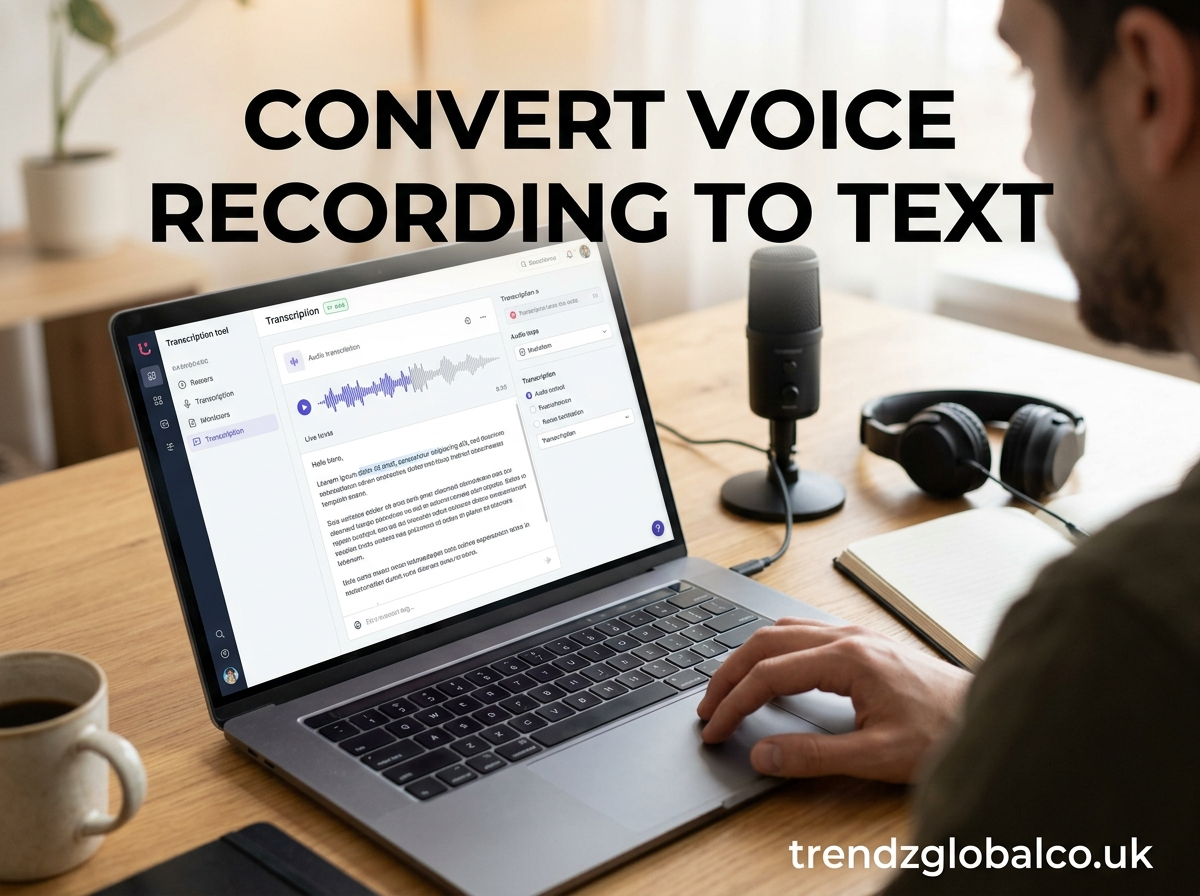
Converting a voice recording to text lets you turn spoken words into written content without typing everything manually. You can use this method to transcribe lectures, meetings, interviews, personal notes, and other audio recordings. Many online tools and mobile apps can process audio files and generate a written transcript in minutes.
The process is simple: upload your recording to a compatible transcription tool, select the language, and let the software recognize the spoken words. You can then review the transcript, correct mistakes, and save it as a text document. The best method depends on your device, recording length, language, privacy needs, and budget.
What Does Convert Voice Recording to Text Mean?
Converting a voice recording to text means changing spoken language into written words. This process is called audio transcription. It uses speech recognition technology to identify words in an audio file and produce a readable text version.
For example, a student can turn a recorded lecture into study notes, while a business professional can transcribe a meeting to keep track of decisions. Journalists can use transcription to prepare interview drafts, and content creators can turn spoken ideas into blog posts or video scripts.
Voice transcription differs from live dictation. Dictation converts speech into text as you speak, while transcription usually processes audio that has already been recorded. Some tools support both functions, but not every dictation feature can transcribe an existing audio file.
How to Convert a Voice Recording to Text
The easiest way to convert a voice recording to text is to use an online transcription service or an app that supports audio uploads. Most tools follow a similar process, although their features, file limits, and supported languages may differ.
Start by locating the recording on your phone or computer. Open a transcription tool that accepts your audio format, upload the file, and select the language spoken in the recording. Some services detect the language automatically, but choosing it manually can improve the result.
Once you start transcription, the software analyzes the audio and creates a written version. Read through the transcript and compare unclear sections with the original recording. Correct names, numbers, technical terms, and sentences that the software may have misunderstood. Finally, copy or download the text in a supported format.
Best Tools to Convert Voice Recording to Text
Several types of tools can convert recorded speech into written text. The right choice depends on whether you need a quick transcript, long-form audio processing, speaker labels, or support for a particular language.
Google Docs voice typing is useful for live dictation when you want to speak directly into a document. However, its standard voice typing feature is not the same as uploading an existing recording for transcription. A separate playback-and-dictation workflow may be possible, but results can vary.
Microsoft Word transcription features can help users with supported Microsoft 365 accounts turn uploaded audio into text. Availability and usage limits depend on the account, language, and version. Review the current feature requirements before choosing this option.
AI transcription services are often a better fit for existing recordings. Depending on the service, they may support audio uploads, multiple languages, speaker identification, timestamps, and downloadable transcripts. Some offer free plans with limits, while others require payment for longer recordings or advanced features.
Before uploading audio, check supported file formats, language accuracy, export options, pricing, and privacy terms. A tool that works well for English interviews may not perform equally well with regional accents or mixed-language conversations.
How to Convert Voice Recordings to Text on a Phone
You can convert voice recordings to text on Android and iPhone devices without transferring the audio to a computer. The exact steps depend on the phone, recording app, and transcription service you choose.
On Android, open your recording app and check whether it offers a transcription feature. Some devices and apps can display recognized speech alongside a recording, but availability varies by model, app, language, and region. If your recorder does not support transcription, open a browser or compatible app that accepts uploaded audio files.
On an iPhone, locate the recording in the Voice Memos app or wherever you saved the audio. Check whether your device and software version provide a suitable transcription option. If not, you can share or upload the recording to a compatible transcription service.
After the text appears, review it on your phone and correct any mistakes. For long interviews or lectures, a service with a text editor and export options may be easier to use than copying the transcript manually. Avoid uploading private conversations to services you have not checked.
How to Convert Audio Files into Text Online
Online audio-to-text converters are convenient when you want to transcribe an existing recording without installing desktop software. Most work through a browser and support one or more common audio formats.
First, choose a service that accepts your file type. MP3 is widely used for compressed audio, WAV is common for high-quality recordings, and M4A is frequently found in phone recordings. Support varies by platform, so check the accepted formats before uploading.
Next, upload the recording and select the correct language. Start the transcription process and wait for the tool to generate the text. Processing time depends on the recording’s length, audio quality, and the service’s capacity. Some platforms also provide speaker labels, timestamps, and options to export the transcript.
Check file-size limits, recording-duration restrictions, and any free usage allowance. If the recording contains confidential information, review the service’s data handling and deletion policies first. For sensitive material, an offline transcription tool may be a more suitable option if it meets your accuracy and technical needs.
Can AI Convert Voice Recordings to Text Automatically?
Yes. Artificial intelligence can convert many voice recordings into text automatically through a technology known as automatic speech recognition (ASR). The software analyzes audio signals, identifies likely speech sounds and words, and generates a written transcript.
Some transcription systems also use language models to improve sentence structure, punctuation, and readability. Depending on the tool, you may receive timestamps, speaker labels, or separate sections for different speakers. These features can be useful when transcribing interviews, discussions, and business meetings.
Automatic transcription is not always accurate. Background noise, overlapping speakers, unfamiliar names, technical vocabulary, and strong accents can cause errors. A recording that switches between languages may also be harder to transcribe correctly.
AI transcription should therefore be treated as a first draft rather than a guaranteed word-for-word record. For legal, academic, medical, or other high-stakes uses, carefully verify the transcript against the original audio and follow any relevant professional requirements.
How to Get Accurate Text from a Voice Recording
Audio quality has a direct effect on transcription accuracy. A clear recording gives speech recognition software a better chance of identifying words correctly. If you are recording a lecture, interview, or meeting, place the microphone close enough to capture speech while avoiding distortion and unnecessary background noise.
Choose the correct language before starting the transcription. If the recording includes several languages, look for a service that supports multilingual speech. When possible, use a tool that recognizes speaker changes if several people are talking. Speaker labels can help organize the transcript, but they may still require manual correction.
Always check proper names, dates, phone numbers, abbreviations, and specialized terms. These details are easy for transcription software to misinterpret, even when the surrounding sentence looks correct. Listen again to unclear sections instead of guessing what the speaker intended.
For longer recordings, review the transcript in sections. Correct punctuation, remove accidental repetitions if you want a cleaned-up transcript, and preserve the original wording when an exact record is necessary. Keep a copy of the original audio so you can verify disputed or unclear passages later.
Is It Free to Convert Voice Recording to Text?
You can convert voice recordings to text for free using certain online services, device features, and applications. However, free access does not always mean unlimited transcription. Some tools restrict recording length, monthly usage, file size, export formats, or access to advanced features.
Free options are often enough for short voice notes, occasional interviews, or simple personal recordings. Built-in transcription features may also work well if your device supports the required language and file type. Before choosing a service, confirm that it can process an existing recording rather than only transcribing speech as you speak.
Paid services may be useful if you regularly transcribe lengthy meetings, need multiple speaker labels, or want timestamps and team collaboration features. Some paid plans also offer higher usage limits and additional export options. Compare the cost with the amount of audio you process each month.
Do not choose a tool based on price alone. Accuracy, language support, privacy, ease of editing, and file compatibility can matter more than a low subscription fee. If you only need a transcript occasionally, begin with a free option and upgrade only if its limits affect your work.
Benefits and Limitations of Voice-to-Text Conversion
Voice-to-text conversion saves time when compared with typing every word from a recording. It can turn spoken information into searchable notes, making it easier to find important details in lectures, interviews, meetings, and brainstorming sessions. Transcripts can also support people who prefer reading to listening or who need written records for reference.
Written transcripts are useful for content creation as well. A recorded discussion can become a first draft for an article, while a spoken explanation can provide material for captions, summaries, or internal documentation. However, transcription produces a written version of speech; it does not automatically guarantee a well-organized summary or a polished article.
There are also limitations to consider. Poor audio quality can reduce accuracy, and automated systems may struggle with overlapping voices, accents, and specialist vocabulary. Editing may be necessary before a transcript is ready to share or publish.
Privacy is another concern. Voice recordings may contain personal details, confidential business information, or private conversations. Read the service’s privacy policy before uploading such files, and use a trusted or offline tool when appropriate. Keep in mind that a transcript may contain sensitive information even after the audio is deleted.
Frequently Asked Questions
How can I convert a voice recording to text for free?
Choose a transcription tool that offers a free plan or use a compatible built-in feature on your phone or computer. Upload the recording if the tool supports audio files, select the language, and generate the transcript. Check the free usage limits before processing a long recording.
Can I convert an existing voice recording into text?
Yes. You can upload a saved audio file to a transcription service that supports existing recordings. Select the language, start the process, and review the generated text for errors. Make sure the service accepts your file format before uploading it.
Can I convert a voice recording to text on my iPhone?
Yes. Depending on your iPhone model, software version, and recording app, you may have access to built-in transcription features. Otherwise, use a compatible app or online service that accepts uploaded audio. Review the transcript before copying or sharing it.
What is the best format for voice recording transcription?
MP3, WAV, and M4A are common choices, but the best format depends on the transcription tool. WAV can preserve high-quality audio, while MP3 is often more convenient for sharing smaller files. Always check the platform’s supported formats and size limits.
How accurate is AI voice-to-text conversion?
Accuracy depends on audio quality, background noise, the language spoken, accents, and the transcription system. Clear recordings with minimal interference generally produce better results. Review the transcript carefully, especially when exact wording, names, numbers, or technical terms matter.
Is it safe to upload voice recordings to online transcription tools?
It depends on the service and how it handles uploaded data. Review its privacy policy, storage practices, retention period, and deletion options before uploading sensitive audio. For confidential recordings, consider an offline tool or a service approved by your organization.
Conclusion
Converting a voice recording to text is a practical way to turn spoken information into written content. You can use an online transcription service, a compatible mobile app, or a built-in feature, depending on the recording and your device.
For the best results, choose a tool that supports your language and audio format, record clear speech, and review the final transcript. If your recording contains private or confidential information, check the tool’s privacy practices before uploading it. These simple steps can help you produce a transcript that is useful, readable, and accurate enough for your needs.
