



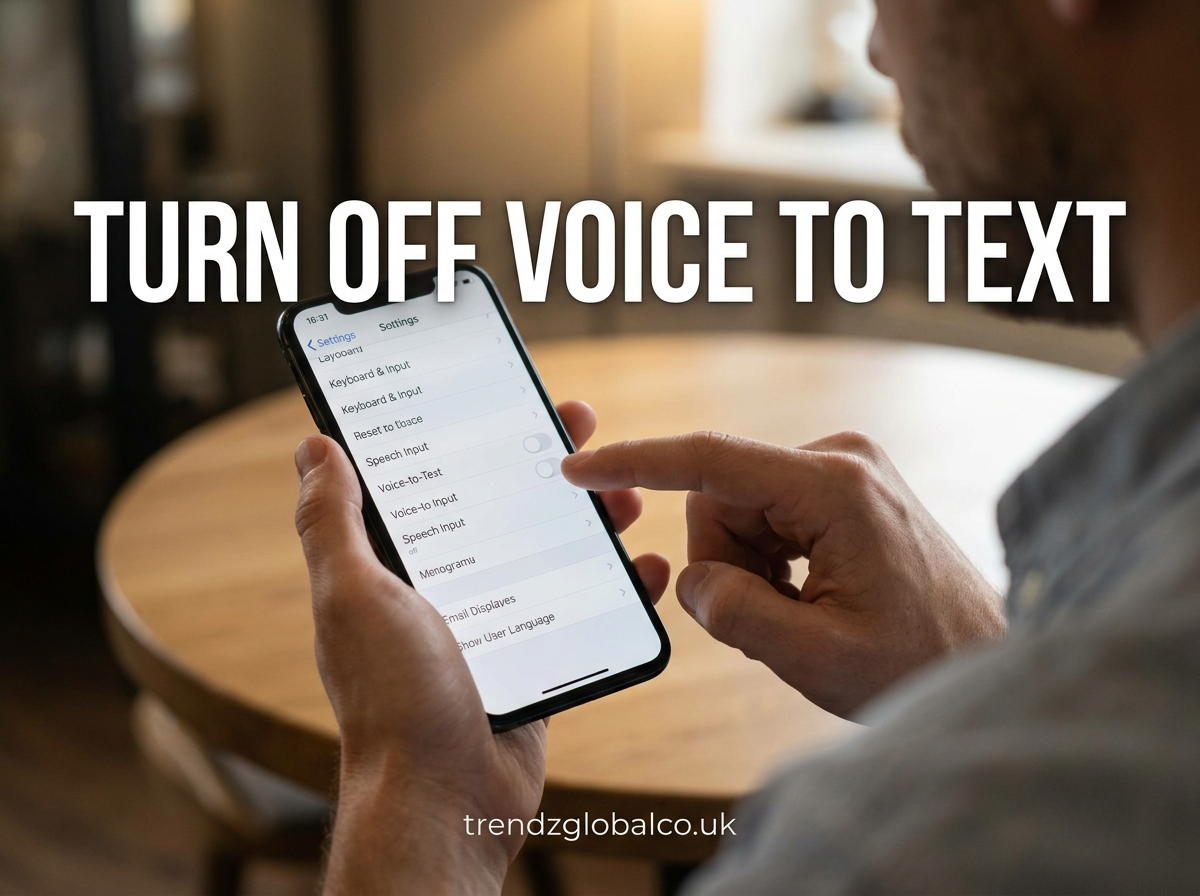
Voice to text lets you speak into a microphone and have your device convert your words into written text. It is useful for sending messages, writing notes, and entering text without typing. However, it can become frustrating when your phone starts typing your speech accidentally or the microphone button appears whenever you open the keyboard.
If you want to turn off voice to text, you can usually do so through your keyboard or device settings. The exact steps depend on whether you use an Android phone, Samsung device, iPhone, or Windows computer. This guide explains how to disable voice typing, stop unwanted dictation, and fix common problems.
How to Turn Off Voice to Text on Android
On most Android phones, voice typing is controlled by the keyboard app. Many devices use Gboard, Google’s keyboard, while others have a keyboard supplied by the phone manufacturer.
To turn off voice typing on an Android phone, open the Settings app and look for Keyboard, Languages and input, or General management. The menu name may differ depending on your phone model. Find your current keyboard settings and look for an option called Voice typing or Google Voice Typing. If a switch is available, turn it off.
If your phone uses Gboard, open Gboard settings and select Voice typing. Check whether voice typing can be disabled from that menu. Some Android versions organize this setting differently, so you may need to check the system’s keyboard settings as well.
After changing the setting, open a messaging app and tap the text field. Check whether the microphone button or voice input feature is still available. The microphone icon may remain visible on some keyboards even when voice typing is disabled elsewhere. If the steps do not match your phone, search your Settings app for “voice typing” or check your manufacturer’s instructions.
How to Disable Google Voice Typing
Google Voice Typing lets you enter text by speaking rather than using your keyboard. If you use Gboard, you can manage its voice input options through the keyboard settings.
First, open an app where you can type, such as Messages or Notes. Tap the text field to display Gboard. Open the keyboard settings, select Voice typing, and review the available controls. Depending on your Android version and Gboard configuration, you may be able to turn off the feature or change how voice input works.
If you cannot find a voice typing switch in Gboard, open your phone’s main Settings app and look under the keyboard or language input section. Check which keyboard is selected as the default because changing Gboard settings will not necessarily affect another keyboard.
You can also review microphone permissions for the relevant app if you want to limit microphone access. However, microphone permissions and keyboard voice typing are different settings. Removing microphone access may affect other features that need the microphone, so change permissions only when necessary.
How to Turn Off Voice to Text on iPhone
On an iPhone, voice to text is commonly known as Dictation. It allows you to speak while the keyboard converts your words into text. If you keep activating it by mistake, you can disable Dictation through the iPhone settings.
Follow these steps:
- Open the Settings app.
- Tap General.
- Select Keyboard.
- Find Enable Dictation.
- Turn off the switch and confirm if prompted.
Once Dictation is disabled, you should no longer be able to start keyboard dictation using the usual Dictation control. You can still type messages normally using the on-screen keyboard.
Keep in mind that disabling Dictation does not automatically turn off Siri. Siri is Apple’s voice assistant, while Dictation converts spoken words into text. If Siri continues responding to your voice, review the Siri settings separately.
If you cannot find Enable Dictation, check your iOS version and device restrictions. Some settings may be unavailable or managed by a parent, school, or workplace.
How to Turn Off Voice Typing on Samsung Phones
Samsung phones may use Samsung Keyboard or Gboard, depending on the device and the user’s settings. The steps for turning off voice typing depend on which keyboard is active.
To check your keyboard, open Settings and select General management. Look for Keyboard list and default or a similarly named option. This section shows the keyboards installed on your phone and identifies the default keyboard.
If you use Samsung Keyboard, open its settings and look for voice input or keyboard toolbar options. If you use Gboard, open Gboard settings and check the Voice typing section. Disable the relevant option if your version provides a control for it.
Samsung phones may also offer voice input through system settings or other services. If the microphone button remains visible, check whether it belongs to the keyboard toolbar, a voice assistant, or another accessibility feature. These functions may require different settings.
After making a change, open Messages and test the keyboard. If voice typing still works, confirm that you changed the settings for the keyboard you actually use. Switching between Samsung Keyboard and Gboard can explain why a setting appears to have no effect.
How to Turn Off Voice to Text on Windows
Windows computers include voice typing, which lets you speak into a microphone to enter text in supported applications. It can be useful when writing documents, but you may want to stop it if it starts unexpectedly.
On Windows 11, you can usually open voice typing by pressing Windows key + H while a text field is selected. If the voice typing panel is open, close it to stop the current dictation session.
If you want to prevent unwanted voice input, review your microphone permissions and Windows speech settings. Open Settings and look under Privacy & security for microphone access options. You can manage which apps have permission to use the microphone, although changing these permissions may affect calls, recordings, and other microphone features.
Windows also has Voice Access, an accessibility feature that allows users to control parts of their computer with spoken commands. Voice Access is different from voice typing. If your computer responds to commands or keeps listening when you do not expect it to, check whether Voice Access is enabled and turn it off if you do not need it.
How to Disable Voice to Text in Specific Apps
Sometimes voice typing appears to be an app problem when it is actually controlled by your device’s keyboard. Before changing individual app settings, identify whether the words are being entered through keyboard dictation or through a feature built into the app.
WhatsApp: If you are dictating a message, the microphone or voice input button on your keyboard may be responsible. Disable voice typing through your keyboard settings. The separate microphone used to record and send a WhatsApp voice message is a different feature and can still work.
Google Docs: Google Docs offers a voice typing feature in supported desktop browsers. If you started dictation from the Tools menu, stop the active voice typing session. If your device’s keyboard is converting speech into text, change the keyboard or system settings instead.
Messages and texting apps: On Android and iPhone, dictation is generally managed through the keyboard or operating system. Turning off the appropriate voice input feature can stop speech from being entered into messages.
If an app continues using the microphone when you are not using voice input, review its microphone permission settings. Remember that removing permission may prevent other app features from working.
Why Does Voice to Text Keep Turning On?
Voice typing may start because you accidentally tap the keyboard’s microphone icon. On a small phone screen, this can happen while switching between symbols, changing keyboards, or typing quickly.
Another reason is that voice typing remains enabled in your keyboard settings. Some keyboards display a microphone button near the space bar or toolbar, making it easy to activate dictation without noticing. Switching to another keyboard may also make it seem as though the feature has returned.
Voice assistants and accessibility features can cause similar confusion. Siri, Google Assistant, and Windows Voice Access have functions that respond to speech, but they do not all work the same way as keyboard dictation. Disabling voice typing will not necessarily stop these other services.
Finally, a system update or keyboard update may change the location or appearance of voice input settings. If the feature starts working differently after an update, check the current settings for your operating system and keyboard app.
How to Stop Voice Typing Without Disabling Your Microphone
You do not always need to block microphone access to turn off voice to text. In many cases, disabling keyboard dictation is enough to prevent spoken words from appearing in a text field.
Start by checking the voice typing settings for your current keyboard. On an iPhone, turn off Enable Dictation under General and Keyboard. On Android, review the settings for Gboard or the keyboard supplied by your phone manufacturer. On Windows, close the voice typing panel and review the settings for speech features you do not use.
Keeping microphone access available can be useful if you make voice calls, record audio, or use speech features in other apps. If you want to stop one app from accessing your microphone, you can review its permissions separately.
The best choice depends on what you want to prevent. Disable keyboard dictation if you do not want speech converted into typed words. Change microphone permissions if you want to restrict an app’s access to the microphone. Turn off a voice assistant separately if it is responding to spoken commands.
Voice to Text Is Not Turning Off: How to Fix It
If voice typing continues after you change a setting, first check which keyboard is active. Your phone may use Gboard for one session and another keyboard at a different time. Make sure you changed the settings for the keyboard currently selected as the default.
Next, close the app where you were typing and open it again. If that does not help, restart your device. A restart can resolve temporary problems with the keyboard or system settings.
Check whether a separate voice feature is responsible. On iPhone, Dictation, Siri, and accessibility features have different controls. On Android, keyboard voice typing and Google Assistant are separate functions. On Windows, voice typing and Voice Access are also distinct. Turning off one will not always disable the others.
You should also check for available operating system and keyboard updates. If the problem began after an update, look for changes in the keyboard settings or the manufacturer’s support instructions.
As a final step, consider resetting keyboard settings if the problem persists. Be aware that a reset may remove saved keyboard preferences or other custom settings. Before doing so, confirm that you have checked the correct keyboard and disabled the relevant voice input feature.
Frequently Asked Questions
How do I turn off voice to text quickly?
On an iPhone, open Settings, select General, tap Keyboard, and turn off Enable Dictation. On Android, open your keyboard settings and look for Voice typing. The exact option depends on your keyboard and Android version.
How do I stop my phone from typing what I say?
Disable keyboard dictation or voice typing in your device’s settings. If spoken words continue appearing, check whether another keyboard, voice input service, or accessibility feature is active.
Can I turn off voice typing but keep my microphone working?
Yes. You can usually disable keyboard dictation without blocking microphone access for calls, recordings, or other apps. Manage microphone permissions separately if you want to restrict an app’s access.
Why is my phone typing instead of letting me type normally?
You may have accidentally activated the keyboard’s microphone button. Tap the regular text field and use the on-screen keyboard. If the problem keeps happening, check the voice typing settings for your active keyboard.
How do I remove the microphone button from my keyboard?
The method depends on the keyboard app. Check the keyboard toolbar and voice input settings on Android. On iPhone, disabling Dictation removes the standard keyboard dictation function, although the appearance of other controls can vary by iOS version.
Does turning off voice to text affect Google Assistant or Siri?
No, not usually. Keyboard voice typing converts speech into text, while Google Assistant and Siri respond to voice commands. These features have separate settings, so you may need to disable them independently.
Conclusion
Turning off voice to text is usually a simple settings change. iPhone users can disable Dictation under General and Keyboard, while Android users should check the settings for Gboard or their phone’s default keyboard. Windows users can close voice typing with the Windows key + H shortcut and review other speech features separately.
If voice typing keeps activating, confirm which keyboard is in use and check whether a voice assistant or accessibility feature is responsible. You can usually stop unwanted speech-to-text input without disabling your microphone across the entire device.
