



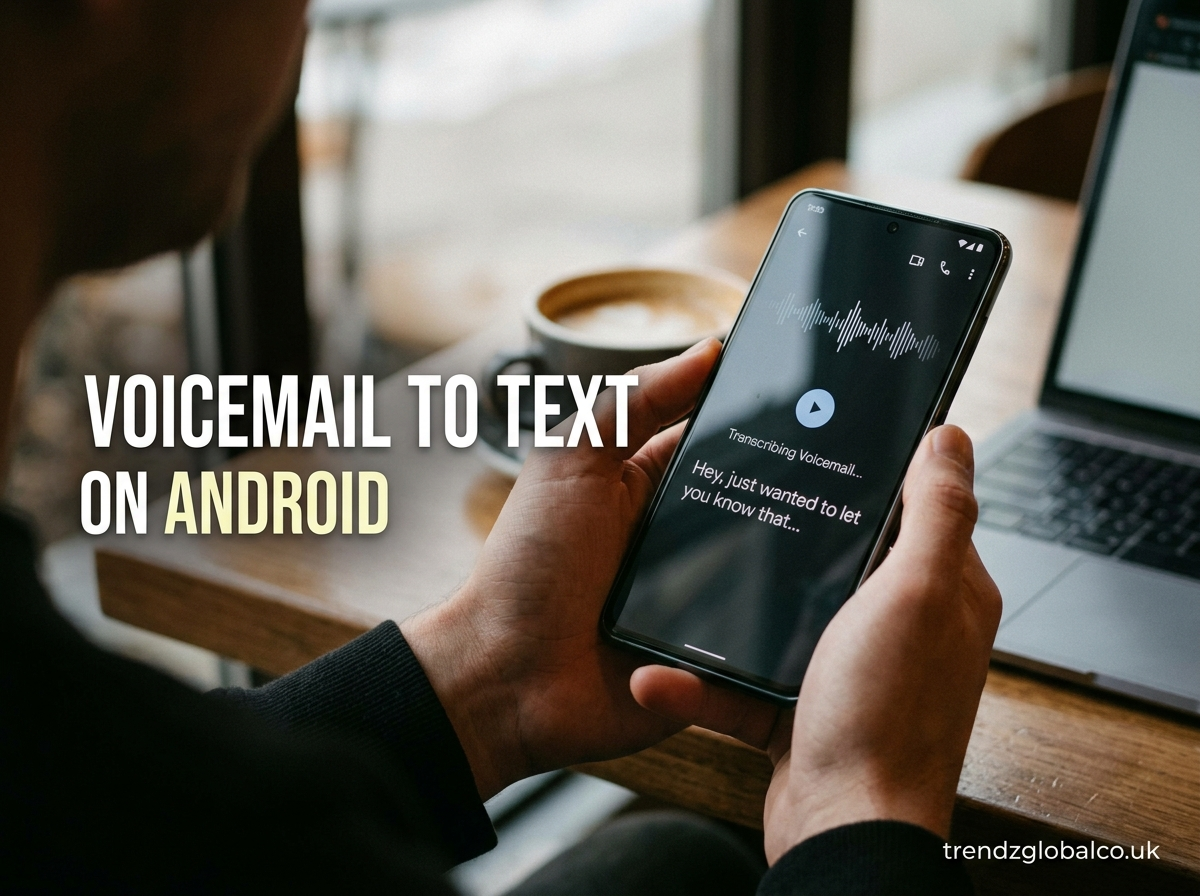
Voicemail to text on Android lets you read voicemail messages without listening to the entire audio recording. Instead of playing each message, you can open a supported voicemail app and read a written transcript. This is useful when you are at work, in a meeting, travelling, or somewhere you cannot listen to audio.
The available features depend on your Android phone, mobile carrier, voicemail app, and language settings. Some devices display voicemail transcripts automatically, while others require a compatible visual voicemail service or a separate transcription tool.
What Is Voicemail to Text on Android?
Voicemail to text is a feature that converts spoken words in a voicemail recording into written text. It uses speech recognition technology to identify words and display them as a readable message.
For example, someone might leave a voicemail saying, “Please call me back after 3 PM about tomorrow’s appointment.” If your voicemail service supports transcription, you may be able to read this message on your screen instead of playing the recording.
Voicemail transcription differs from visual voicemail. Visual voicemail lets you view and manage voicemail messages from an app, while transcription displays the spoken content in text form. Some services provide both features, but others offer visual voicemail without transcripts.
This feature can save time when you receive several messages throughout the day. It also helps when you need to find a specific detail, such as a meeting time, address, or callback number.
How to Convert Voicemail to Text on Android
The easiest way to convert voicemail to text on Android is to check whether your Phone app or carrier’s voicemail service already supports transcription.
Follow these steps to get started.
- Open the Phone app on your Android device.
- Look for the Voicemail tab or open the Visual Voicemail app provided by your carrier.
- Select the voicemail message you want to read.
- Check whether a text transcript appears beneath or beside the recording.
- Read the transcript and use any available copy or share option if you need to save the information.
The exact menu names and locations can vary between devices. If you cannot find a Voicemail tab, open the Phone app settings or check your carrier’s instructions.
If no transcript appears, it does not necessarily mean your phone is faulty. Your carrier or voicemail app may not support transcription, or the feature may need to be enabled first.
You can also use a third-party transcription service if you can access the voicemail audio as a recording. Check whether your voicemail app permits audio export before choosing this option.
How to Turn On Voicemail Transcription on Android
Some Android voicemail services provide transcription settings, while others manage the feature through the carrier. Start by checking the apps already installed on your phone.
Open your Phone app and look for voicemail settings. If you use a separate Visual Voicemail app, open its settings as well. Look for options related to transcription, voicemail text, language, or message display.
If a transcription option is available, enable it and open a voicemail to see whether the text appears. You may need an internet connection or an updated app, depending on the service.
If you cannot find the setting, check your mobile carrier’s website or contact its support team. Ask whether voicemail transcription is included with your current plan and whether it requires activation.
Do not assume that every Android phone has a universal voicemail transcription switch. Android features vary by manufacturer, software version, country, and carrier. Some services activate transcription automatically, while others do not offer it at all.
Does Android Have Built-In Voicemail to Text?
Android supports voicemail features through compatible Phone apps and carrier services, but voicemail-to-text is not available in the same way on every device.
Google Pixel phones may offer voicemail features through the Google Phone app, depending on the model, software version, language, and region. Some supported configurations provide voicemail transcription directly within the app.
Samsung Galaxy phones may provide voicemail access through the Samsung Phone app or a carrier’s Visual Voicemail app. Whether you can read transcripts depends on the carrier and the service available for your account.
Other Android phones may rely entirely on the voicemail service provided by the mobile network. In these cases, the phone can receive and play voicemails without automatically converting them into text.
Before installing another app, check your existing voicemail options. A supported built-in or carrier-provided feature may be all you need.
Best Ways to Get Voicemail Transcription on Android
There are several ways to read voicemail messages as text. The right choice depends on your phone, the features included with your plan, and how often you receive voicemails.
Use the Built-In Phone App
Start with your phone’s default Phone app. If it supports voicemail transcription in your configuration, you may be able to read messages without setting up another service.
This option is convenient because you can manage calls and voicemails in one place. However, the availability of transcription depends on your device and supported settings.
Use Your Carrier’s Visual Voicemail App
Many mobile carriers provide their own voicemail applications. These apps may let you view messages, check timestamps, play recordings, and access transcripts when the service supports them.
Check the app description and your carrier’s plan details before activating a feature. Some services are included in a plan, while others may require a separate subscription.
Use a Third-Party Transcription Tool
If your current voicemail service does not provide text, an audio transcription tool may be an alternative. You may be able to upload an accessible voicemail recording and receive a written transcript.
Before choosing a tool, check its supported audio formats, language options, pricing, and privacy policy. Voicemail recordings may contain personal information, so avoid uploading sensitive messages to services you do not trust.
Why Is Voicemail to Text Not Working on Android?
Voicemail transcription may stop working or fail to appear for several reasons. Identifying the cause can help you find the right solution.
Your carrier does not support transcription. Some carriers offer voicemail without text conversion. Contact your carrier to confirm whether transcription is available for your phone number and plan.
The feature is not enabled. Open your voicemail app settings and look for transcription options. If there is no such setting, check the carrier’s documentation.
Your app needs an update. Open the Google Play Store and check for updates to your Phone or Visual Voicemail app. Restart the app after updating it.
Your internet connection is unavailable. Some services require mobile data or Wi-Fi to load voicemail information or generate transcripts. Check your connection and try again.
The language is unsupported. Transcription may not work if the spoken language is not supported by the service. Check the available language settings.
The audio is difficult to understand. Background noise, quiet speech, and unclear pronunciation can affect transcription. Play the original recording to confirm any missing or incorrect words.
If these steps do not resolve the issue, contact your carrier or the app provider. They can confirm whether the problem relates to account settings, service availability, or a technical fault.
Is Voicemail to Text Free on Android?
Voicemail-to-text can be free when it is included with your phone’s supported features or mobile plan. However, there is no single pricing rule that applies to every Android user.
Some carriers include visual voicemail or transcription in selected plans. Others may charge an additional fee or require a separate subscription. Third-party transcription apps may offer limited free use and charge for additional recordings or longer audio files.
Check your carrier’s current terms before activating a service. Also review the pricing details of any third-party tool you plan to use.
Mobile data charges may apply when you use a service over a cellular connection, depending on your plan. Using Wi-Fi may help reduce mobile data usage, although it does not remove subscription fees.
How Accurate Is Android Voicemail Transcription?
Voicemail transcription can make messages easier to read, but it is not always completely accurate. Speech recognition systems may misunderstand words when the recording is unclear or the speaker uses an unfamiliar accent.
Names, street addresses, phone numbers, dates, and technical terms can be especially difficult to transcribe correctly. A message recorded in a noisy environment may also contain missing words or incorrect sentences.
For everyday messages, a transcript can provide enough information to understand the main point quickly. For important information, listen to the original recording before acting on the text.
If you use a separate transcription tool, choose one that supports the language spoken in the recording. Clear audio and minimal background noise can improve the result, although they cannot guarantee a perfect transcript.
Voicemail to Text Android vs. Listening to Voicemail
Both reading and listening to voicemails have advantages. The better option depends on the situation.
Reading a transcript is useful when you need to check a message quickly, search for a detail, or review several voicemails in a short period. It can also help when you cannot play audio aloud.
Listening to the recording may be better when the transcript contains errors or when the speaker’s tone and emphasis matter. Audio can also help you confirm names and other details that speech recognition has misunderstood.
You do not have to choose only one method. When transcription is available, you can read the message first and play the recording if anything seems unclear. This approach combines the speed of text with the context of the original audio.
Frequently Asked Questions
Can I convert voicemail to text on Android?
Yes, if your phone, voicemail app, or carrier supports transcription. Open your voicemail app and select a message to check whether a transcript is available. If not, check your carrier’s options or use a compatible transcription tool with an accessible audio recording.
How do I get voicemail transcripts on my Samsung phone?
Open the Phone app or your carrier’s Visual Voicemail app and select a voicemail. If transcription is supported, the text may appear with the message. If you cannot find it, contact your carrier to check whether the feature is available for your Samsung device and plan.
Does Google Pixel automatically transcribe voicemails?
Some supported Google Pixel configurations provide voicemail transcription through the Google Phone app. Availability depends on the device, software, language, region, and supported service. Check your Phone app’s voicemail settings to see which features are available.
Why does my Android voicemail have no transcription?
Your carrier may not support transcription, the feature may be disabled, or your app may need an update. Unsupported languages and service restrictions can also prevent transcripts from appearing. Check your app settings and carrier’s voicemail options first.
Can I copy or share a voicemail transcript?
Some voicemail apps provide options to copy or share transcript text, while others only let you read it. If those options are unavailable, check whether the app allows access to the recording and whether a compatible transcription tool can process it.
Can I convert an old voicemail recording into text?
Yes, if you can access the recording in an audio format supported by a transcription service. Save or export the voicemail if your app and carrier permit it, then upload it to a suitable tool. If the recording remains only within the carrier’s voicemail system, you may need to check whether an export option is available.
Is voicemail-to-text secure?
Security depends on the app or service you use. Review its privacy policy, storage practices, and permissions before processing voicemail messages. Avoid uploading sensitive recordings to unfamiliar services, especially if they contain financial details, private conversations, or personal information.
Conclusion
Voicemail to text on Android makes it easier to read messages, find important details, and manage calls when listening is inconvenient. The simplest approach is to check your Phone app or carrier’s Visual Voicemail service for a transcription feature.
