



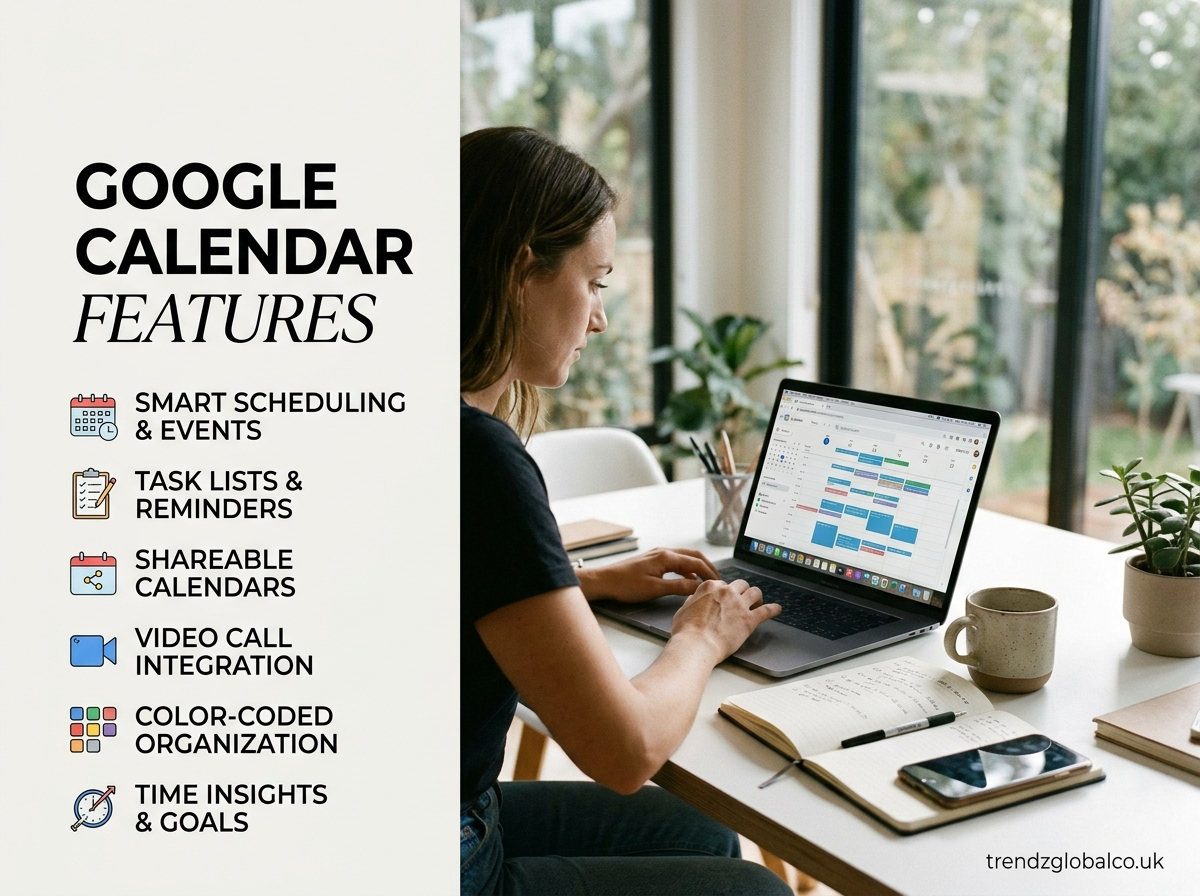
Google Calendar is a digital calendar that helps people plan their days, organize meetings, remember important dates, and manage appointments. It works on computers and mobile devices, making it easier to check schedules from different locations. Users can create events, invite other people, set reminders, and keep personal and work calendars separate.
Understanding Google Calendar features can help students, professionals, business owners, and remote teams manage their time more effectively. From recurring events to shared calendars and Google Meet integration, the platform offers several tools for everyday planning.
What Is Google Calendar?
Google Calendar is an online scheduling service developed by Google. It allows users to create events, set dates and times, manage appointments, and view upcoming activities in one place. Users can access it through a web browser or the Google Calendar app on supported Android and iOS devices.
The service connects with other Google products, including Gmail and Google Meet. For example, when a user receives an eligible flight reservation or meeting invitation through Gmail, related information may appear in Google Calendar. Users can also create separate calendars for work, family, education, or personal activities.
Google Calendar is useful for both individual planning and group coordination. A student can schedule study sessions, an employee can arrange meetings, and a business owner can organize appointments with clients. Calendar sharing and invitation tools also make it easier to coordinate schedules with other people.
What Are the Main Google Calendar Features?
Google Calendar includes several tools that help users plan activities and keep track of their commitments. Some features are designed for individual use, while others support collaboration.
Event creation and editing allows users to add appointments, meetings, birthdays, deadlines, and other activities. Each event can include a title, date, time, location, description, and guest list.
Multiple calendars help users separate different parts of their lives. For example, someone can maintain individual calendars for work, personal appointments, and family activities. Each calendar can have its own color, making events easier to identify.
Reminders and notifications alert users about upcoming events. Depending on their settings, users may receive notifications through the app, browser, or email.
Recurring events save time when an activity happens regularly. Users can schedule weekly meetings, monthly appointments, or daily routines without creating each event separately.
Calendar sharing allows users to share schedules with selected people. Permission settings help control whether others can view event details or make changes.
Guest invitations and RSVPs help meeting organizers invite participants and track their responses. Guests can accept, decline, or respond tentatively to invitations.
Google Meet integration allows users to add video meeting links to eligible calendar events, making online meetings easier to arrange.
Google Calendar also supports appointment schedules for booking time with others, although availability and options can depend on the user’s account type and Google Workspace plan.
How to Create and Manage Events in Google Calendar
Creating an event is one of the most frequently used Google Calendar features. Users can add appointments, meetings, classes, deadlines, and personal activities in a few steps.
To create an event on a computer, open Google Calendar and select the date and time. Click the option to create an event, enter its title, and set the start and end times. Users can add a location, description, guests, and notification preferences before saving it.
The mobile app offers a similar process. Tap the plus icon, choose the event option, and enter the required details. After saving, the event appears on the calendar and can be viewed from the relevant date.
Google Calendar also lets users edit or delete events when plans change. Open the event, select the edit option, make the necessary changes, and save them. If other people have been invited, they may receive an updated invitation.
For events that happen repeatedly, users can choose a recurring schedule. This is useful for weekly classes, team meetings, exercise sessions, and monthly reviews. Instead of adding the same event every time, users can configure a repeating pattern and adjust individual occurrences when needed.
Google Calendar Reminders and Notifications
Notifications help users remember upcoming appointments and important activities. Without reminders, it can be easy to overlook a meeting or forget a scheduled task during a busy day.
Google Calendar allows users to configure notifications for events. Depending on the available settings, an alert can appear before an event starts, giving the user time to prepare or travel to a location. Users can adjust notification preferences for individual events or calendars.
For example, a person attending an online meeting might set a notification a few minutes before the meeting begins. Someone visiting a doctor may prefer an earlier reminder to allow time for travel.
The notification method depends on the device, browser permissions, app settings, and account configuration. Users should check these settings if reminders do not appear as expected.
Google Calendar also works with Google Tasks, which lets users manage to-dos alongside their schedules. A task with a scheduled date can appear in the calendar, helping users see both planned events and individual responsibilities.
To avoid unnecessary alerts, users can review their notification settings and keep only the reminders that are useful to them.
How Google Calendar Sharing Works
Calendar sharing helps people coordinate their schedules without repeatedly asking each other about availability. It is particularly useful for families, project teams, schools, and businesses.
Users can share a calendar with specific people by opening its settings and adding their email addresses. They can then choose an appropriate permission level, depending on the options available to their account.
For example, someone might allow a colleague to view event details but not change them. A team manager may give a trusted coworker permission to manage events. The available permissions vary according to the account and organizational settings.
Users can also subscribe to calendars shared by other people. This makes it easier to view important dates, team meetings, or family activities alongside their own schedule.
Privacy is an important part of calendar sharing. Users should check which calendar they are sharing and who can access it. Work or school accounts may have additional restrictions set by an administrator.
Sharing a calendar does not always mean every event detail is visible. Visibility can depend on sharing permissions and individual event privacy settings.
Google Calendar Features for Meetings and Team Collaboration
Google Calendar provides several tools that help teams arrange meetings, coordinate availability, and keep participants informed. These features are useful for offices, remote teams, freelancers, and organizations that schedule appointments regularly.
When creating an event, an organizer can invite guests by entering their email addresses. Guests receive invitations and can respond to indicate whether they plan to attend. The organizer can review responses and update the event when details change.
Google Meet integration is another useful feature. Users can add a video conferencing link to eligible events so participants can join an online meeting from the calendar invitation. This reduces the need to send separate meeting links.
Shared calendars help teams see relevant schedules, subject to each person’s access permissions. Working hours and out-of-office settings, where available, can also help colleagues understand when someone is likely to be available.
Appointment schedules allow eligible users to offer booking times to others. This can be helpful for consultations, interviews, tutoring sessions, and client meetings. The available booking options depend on the account and subscription.
These tools can make meeting coordination easier, but they do not automatically solve every scheduling problem. Teams still need to keep event details accurate, select appropriate participants, and respect other people’s availability.
Google Calendar on Mobile and Desktop
Google Calendar is available through web browsers and supported mobile apps. Both provide access to events and scheduling tools, although the layout and some controls differ.
On a desktop computer, users can view a larger calendar, edit event details, manage multiple calendars, and work with more scheduling options on one screen. This can be convenient for planning a busy workweek or coordinating several meetings.
The mobile app is useful when users need to check their schedules while travelling or away from their desks. Users can view upcoming events, create appointments, respond to invitations, and receive notifications, depending on their device and settings.
Calendar information can stay synchronized across devices when users sign in to the appropriate account and synchronization is enabled. If an event added on one device does not appear on another, checking the selected account and synchronization settings is a good first step.
The choice between mobile and desktop depends on the task. A phone is convenient for quick updates, while a computer may be easier for managing a complicated schedule or reviewing several calendars together.
Advanced Google Calendar Features You Should Know
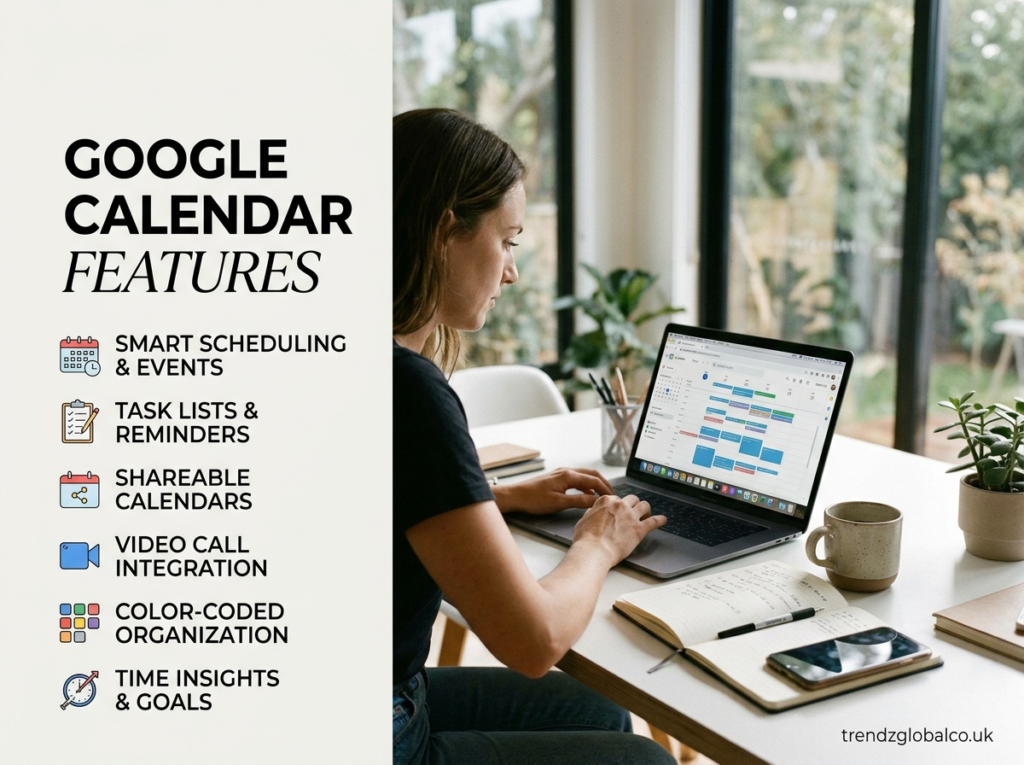
Beyond basic event creation, Google Calendar includes several options that can help users organize their schedules according to their needs.
Multiple calendar views: Users can switch between day, week, month, and other available views. A day view provides a closer look at individual appointments, while a month view helps users understand their broader schedule.
Color-coded events: Different colors can make it easier to distinguish work meetings, personal appointments, classes, and other activities. Users can assign colors to calendars or individual events where supported.
Keyboard shortcuts: The web version supports keyboard shortcuts for certain calendar actions. Users may need to enable shortcuts in settings before using them.
Recurring event controls: Users can define how often an event repeats and, where supported, when the series should end. They can also edit a single occurrence or the entire series.
Appointment schedules: Eligible accounts can create booking pages that show available time slots. Visitors can choose a suitable time without arranging every appointment through separate messages.
Working hours and location: Supported accounts may allow users to set their usual working hours and work location. These settings can help colleagues plan meetings around availability.
Event search: Users can search for event names, people, or other details to find information about past and upcoming commitments.
Not every option appears in every account. Google may change feature availability based on account type, subscription, device, and organizational settings.
How Google Calendar Integrates with Other Apps
Google Calendar works with several Google services, which helps users connect their schedules with other everyday activities.
Gmail can display information about eligible reservations and events, while calendar invitations received by email can help users manage meeting responses. The exact behavior depends on the message and account settings.
Google Meet can add video conferencing details to supported calendar events. This is useful for teams that hold remote meetings or work with clients in different locations.
Google Tasks lets users organize to-dos and view dated tasks alongside calendar events. For example, someone preparing a presentation can schedule the meeting and add a separate task to finish the slides beforehand.
Google Contacts can make it easier to invite people when their contact details are available through the account. Users can also connect or work with other supported applications, depending on their settings and organizational policies.
These integrations help bring scheduling information together. However, users should check permissions before connecting third-party apps or sharing calendar data with external services.
Is Google Calendar Free to Use?
Yes, Google Calendar offers a free version for personal use with a Google account. Its standard features include creating events, managing schedules, setting notifications, inviting guests, and using multiple calendars.
The free version is suitable for many everyday needs, such as planning classes, arranging appointments, organizing family activities, and tracking personal commitments.
Google Workspace accounts can provide additional features or administrative controls depending on the subscription. Businesses and organizations may have access to particular appointment scheduling options, team management settings, or other capabilities that are not available in the same form to every personal account.
Before choosing a plan, users should check Google’s current feature and pricing information. The availability of a specific feature can depend on the subscription, account type, and administrator settings.
For someone who only needs a calendar for personal scheduling, the free version is often enough.
Google Calendar Tips for Better Time Management
Google Calendar becomes more useful when users develop a consistent way to maintain their schedules. A few practical habits can make events easier to manage and reduce scheduling mistakes.
Start by creating separate calendars for different areas of life, such as work, study, and personal appointments. Use clear names and distinct colors so you can recognize each category quickly.
Set reminders for events that require preparation or travel. Choose notification times that suit the activity rather than using the same reminder for everything. For important meetings, check the event details beforehand.
Use recurring events for activities that happen on a regular basis. This can include weekly classes, team meetings, or monthly appointments. Review recurring events occasionally so outdated commitments do not remain on your calendar.
Keep event titles clear and include useful details in the description. For a meeting, this might mean adding an agenda, a location, or relevant instructions. If you invite other people, confirm that the date, time, and guest list are correct.
Review your upcoming schedule regularly. A quick look at the next day or week can help you identify conflicts, prepare for important commitments, and leave enough time between appointments.
Finally, avoid filling every available time slot. Leaving space between activities gives you more flexibility when meetings run late or unexpected tasks arise.
Frequently Asked Questions About Google Calendar Features
What are the most useful Google Calendar features?
The most useful features include event creation, reminders, recurring events, calendar sharing, guest invitations, multiple calendar views, and Google Meet integration. The best options depend on whether you use the calendar for personal planning, work, education, or team coordination.
Is Google Calendar free?
Yes, Google Calendar has a free version for personal use. Users can create events, manage appointments, set reminders, and share calendars. Some additional features depend on Google Workspace subscriptions and account eligibility.
Can I share my Google Calendar with someone?
Yes. You can share a calendar with selected people and assign permissions according to the available settings. Depending on the permission level, recipients may be able to view event details or make changes.
Does Google Calendar send reminders automatically?
Google Calendar can send notifications based on event and calendar settings. The timing and delivery method depend on the user’s preferences, device permissions, and account configuration. Check your notification settings if alerts are missing.
Can I use Google Calendar on my phone and computer?
Yes. You can access Google Calendar through a supported web browser or its mobile app. When you use the same account and synchronization is enabled, your calendar information can be available across devices.
Can Google Calendar schedule recurring events?
Yes. You can set events to repeat daily, weekly, monthly, or according to other available patterns. This is useful for regular meetings, classes, appointments, and routines.
Does Google Calendar work with Google Meet?
Yes. Users can add Google Meet video conferencing details to eligible calendar events. Invited participants can then use the meeting link to join, subject to access and meeting settings.
What is the difference between Google Calendar and Google Tasks?
Google Calendar is mainly used to schedule events at particular dates and times. Google Tasks is designed to track individual to-dos. Dated tasks can appear alongside calendar events, allowing users to see appointments and responsibilities in one place.
Conclusion
Google Calendar features help users organize events, manage appointments, receive reminders, share schedules, and arrange meetings. Its mobile and desktop access makes it convenient to check plans throughout the day, while integrations with Google Meet, Gmail, and Google Tasks support different scheduling needs.
